Getting started
with Talos.
Your passwords, codes, and private files, together in an encrypted vault. Learn to set up Talos, organize your information, and make its features part of your everyday routine.

CHAPTER 01 13
Introduction
Understand Talos, KDBX files, storage, and your master password.
In this chapter 7 topics
Welcome to Talos
Talos brings your passwords, two-factor codes, notes, payment cards, and private files together in an encrypted vault on your iPhone or iPad. Its local-first design keeps your database in your hands, with a choice of Local Storage or iCloud.
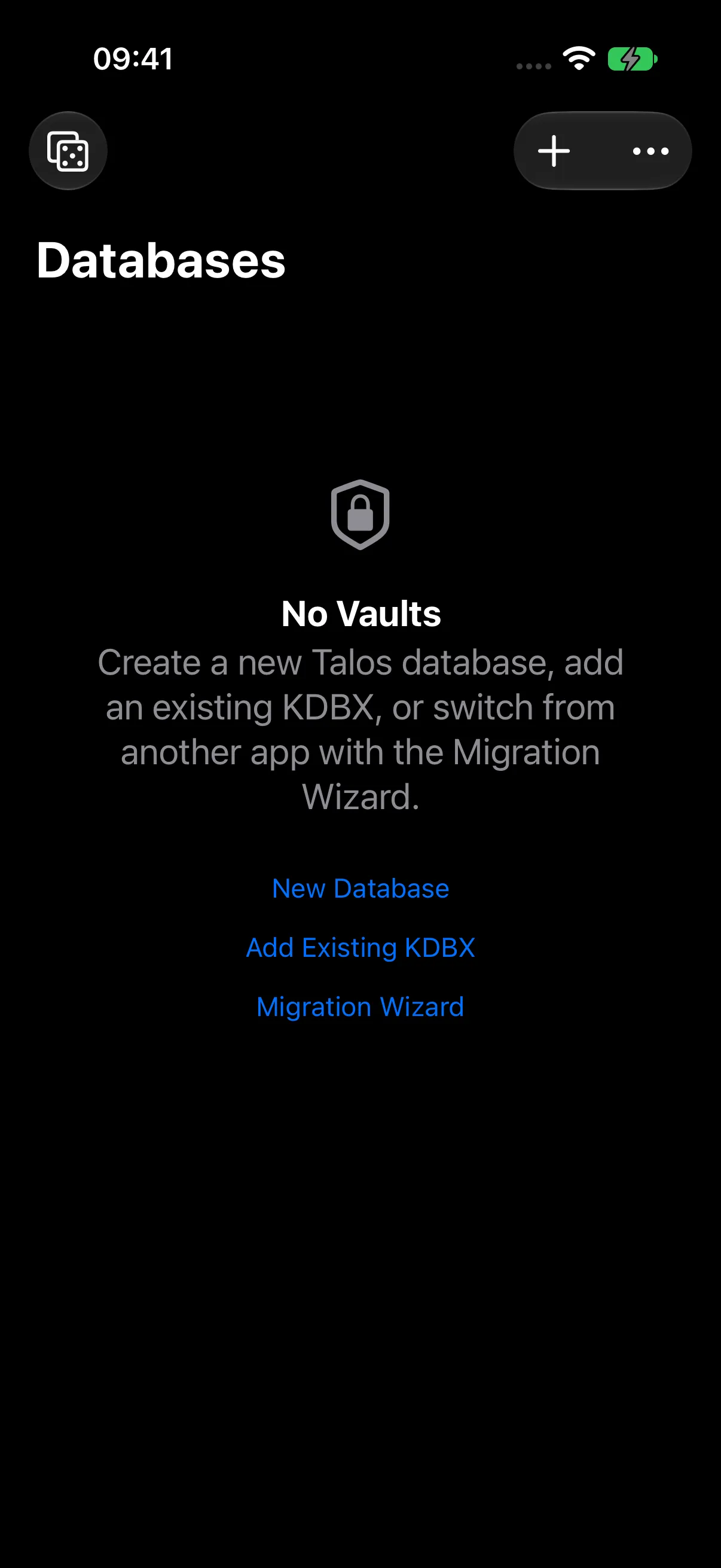
On the Databases screen, tap New Database to create your first vault. Already have a KDBX database? Choose Add Existing KDBX. The Migration Wizard helps you get started when moving from another password manager.
What Can You Keep in Talos?
- Logins: save usernames, passwords, email addresses, websites, and custom fields.
- 2FA Codes: keep time-based one-time passwords with their accounts.
- Notes and cards: organize personal information, travel details, and payment-card records.
- Files and photos: keep documents, attachments, and images inside your vault.
- Document OCR: recognize text in documents and find information through search.
- Groups and colored tags: organize records in a way that suits you.
- Website icons: recognize accounts at a glance with optional favicon downloads.
- Security Center and HIBP: review password breach matches and prioritized recommendations for your vault.
- AutoFill and passkeys: use Talos with participating websites and apps.
- Additional access controls: configure biometric unlocking, category protection, and document policies.
- Decoy Vault: maintain an alternate set of vault content behind a separate password.
Features marked Premium in Talos are available with eligible Premium access. Each chapter shows how to use the relevant feature.
Turn on website icons to bring familiar logos to your entry list. Use HIBP password checks to review individual passwords, and Security Center, included with Talos Premium, for a clear overview of your vault’s security recommendations.
Favicon downloads and HIBP checks are optional and off by default. They use online services when enabled or explicitly requested; you control these preferences in Settings.
Understanding a Talos Database
Your database is the encrypted file that holds your vault. Talos opens it when you unlock and saves your changes as you add or edit records. One database can contain your logins, groups, notes, cards, and attachments together.
What Is KDBX?
KDBX is the encrypted database format used by KeePass and compatible password managers. Talos saves your database as a .kdbx file. The format combines encrypted records, their organization, and associated attachments in a portable container.
In Talos, database refers to that file and vault refers to the contents you see after unlocking. A group is a folder within a vault, and an entry is an individual record such as a saved login.
Encryption in Talos
New Talos databases use KDBX 4.1, AES-256-CBC encryption, and Argon2id key derivation. Encryption protects the database contents. Argon2id derives the keys used to open the database from your master password.
Your master password unlocks the vault. The passwords saved in your login entries belong to their individual websites or apps. Choose a strong, unique master password and keep a secure reference somewhere you can access independently of the vault.
Talos also opens compatible KDBX 4.0 and 4.1 databases. Use Import an Existing KDBX Database to bring an existing vault into Talos.
Local Storage or iCloud
When creating a database, choose one of Talos’s two options:
| Option | Use it to |
|---|---|
| Local Storage | Keep your encrypted database on this iPhone or iPad. |
| iCloud | Keep your encrypted database in your iCloud Drive, when iCloud is available on the device. |
Talos manages the database file for the option you select. In this guide, we use Local Storage.
Your First Vault
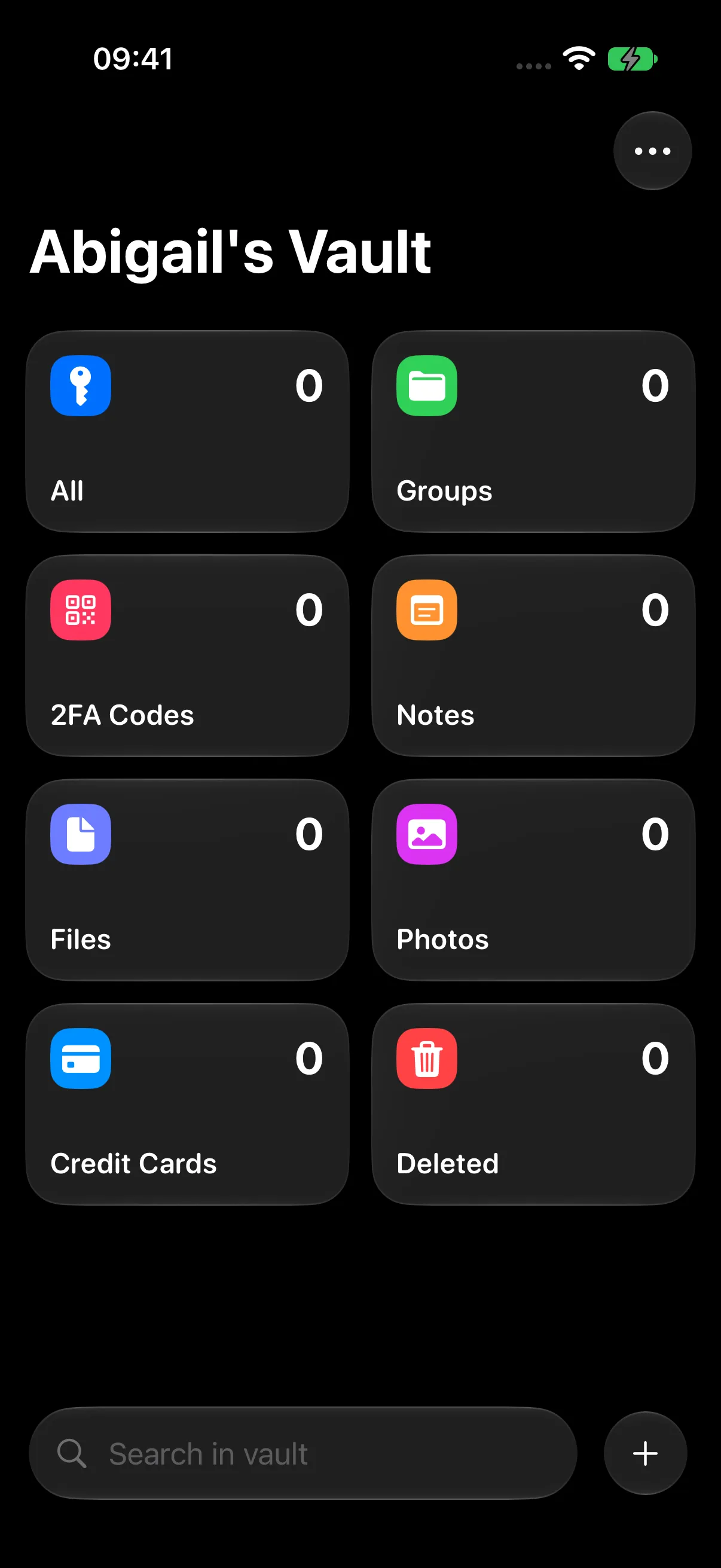
The walkthrough creates Abigail’s Vault and adds a login called Northstar Mail. Abigail Carter and the example records are fictional; use your own names and account details when setting up your vault.
Continue to Create Your First Database for the complete setup.
HERE TO HELP
Help & support
Need help with your Talos setup? Contact Picolab support and tell us which step you are working on. Keep your master password, authentication codes, and private vault contents to yourself.
For details about data practices and service terms, read our Privacy Policy and Terms of Use.
Back to the beginning ↑