Getting started
with Talos.
Your passwords, codes, and private files, together in an encrypted vault. Learn to set up Talos, organize your information, and make its features part of your everyday routine.

CHAPTER 03 13
Create your first entry
Save a login, understand account fields, and add familiar website icons.
In this chapter 12 topics
Save a login in Abigail’s Vault, then open it to see the account details. This chapter follows Create Your First Database.
Before You Begin
The example login is Northstar Mail, using Abigail Carter, abigail.carter@example.com, and https://example.com. Use the credentials for your own account when adding a real login.
Step 1 — Open Your Vault
- Select Abigail’s Vault in Databases.
- Enter its master password and tap Unlock.
- Check the vault name at the top of Vault Home.
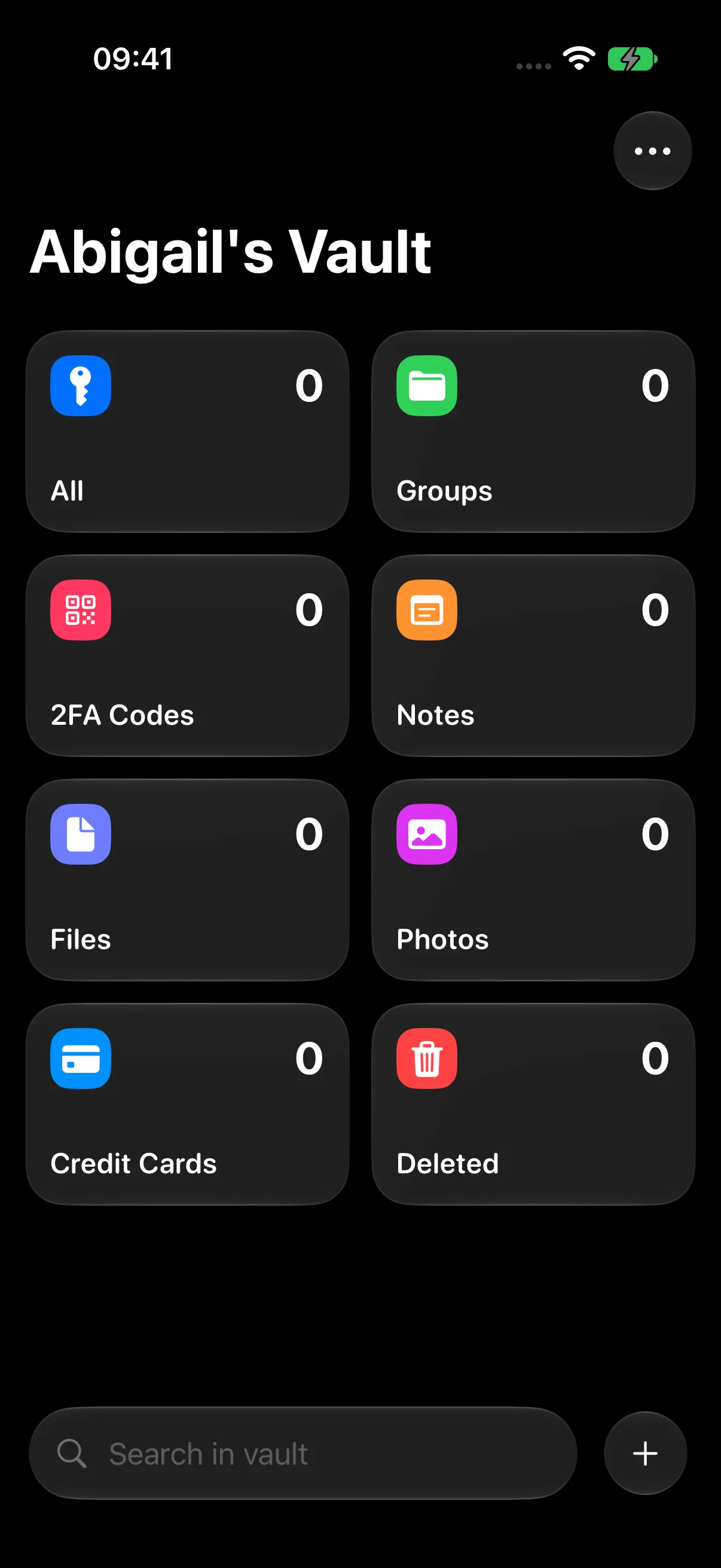
Step 2 — Create a New Entry
- Tap Add (+) at the bottom right.
- Choose New Entry.
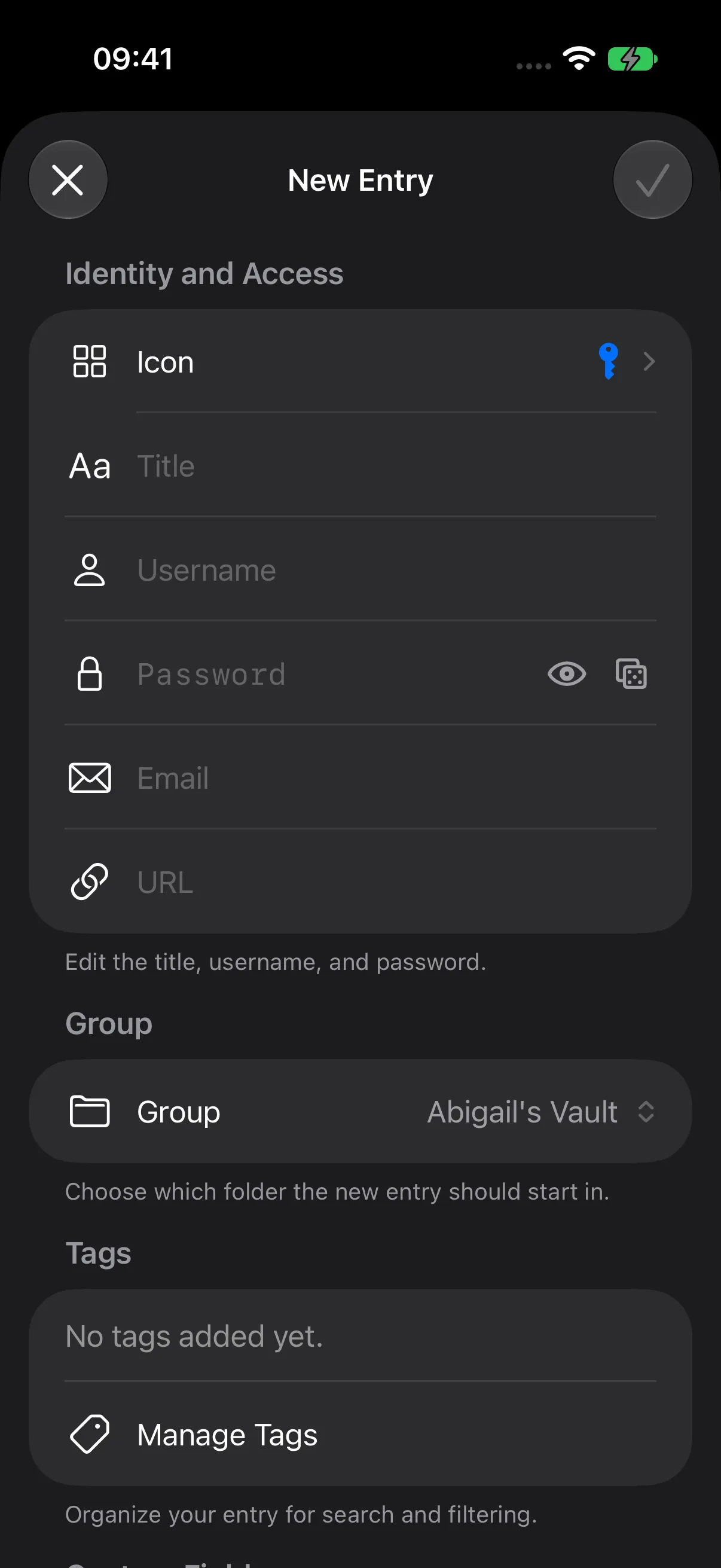
Identity and Access contains the main login fields. Leave Group at Abigail’s Vault for this first entry.
Step 3 — Enter the Account Details
| Field | Example |
|---|---|
| Title | Northstar Mail |
| Username | Abigail Carter |
| abigail.carter@example.com | |
| URL | https://example.com |
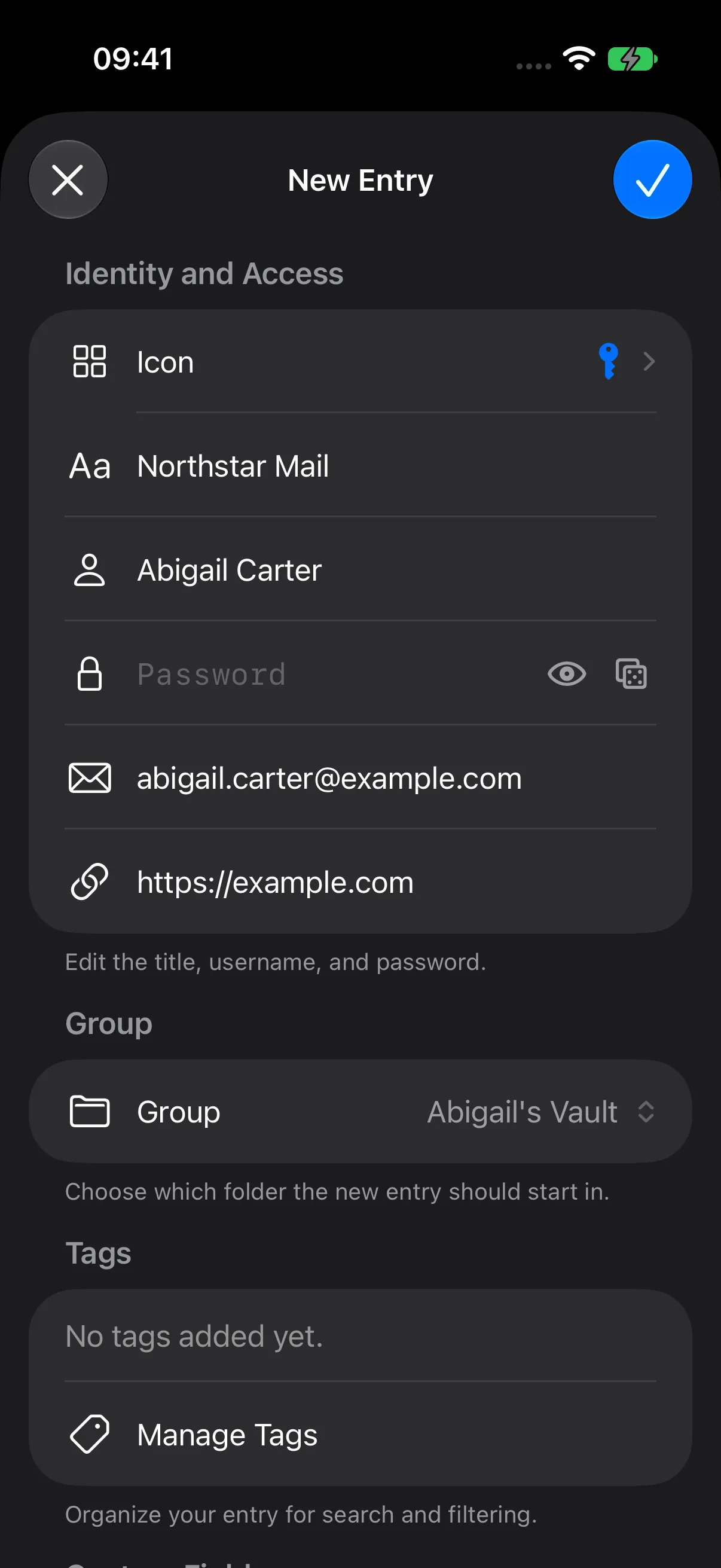
The title identifies the entry in your vault. Username and Email have separate fields so you can record the information your service uses.
Step 4 — Add the Account Password
- Enter the login’s password in Password.
- Review the strength feedback below the field.
- Use the eye control when you want to check the value, then conceal it again.

Step 5 — Save the Entry
- Review the account fields.
- Tap the Save checkmark at the top right.
- Open All on Vault Home.
- Find Northstar Mail in All Items.
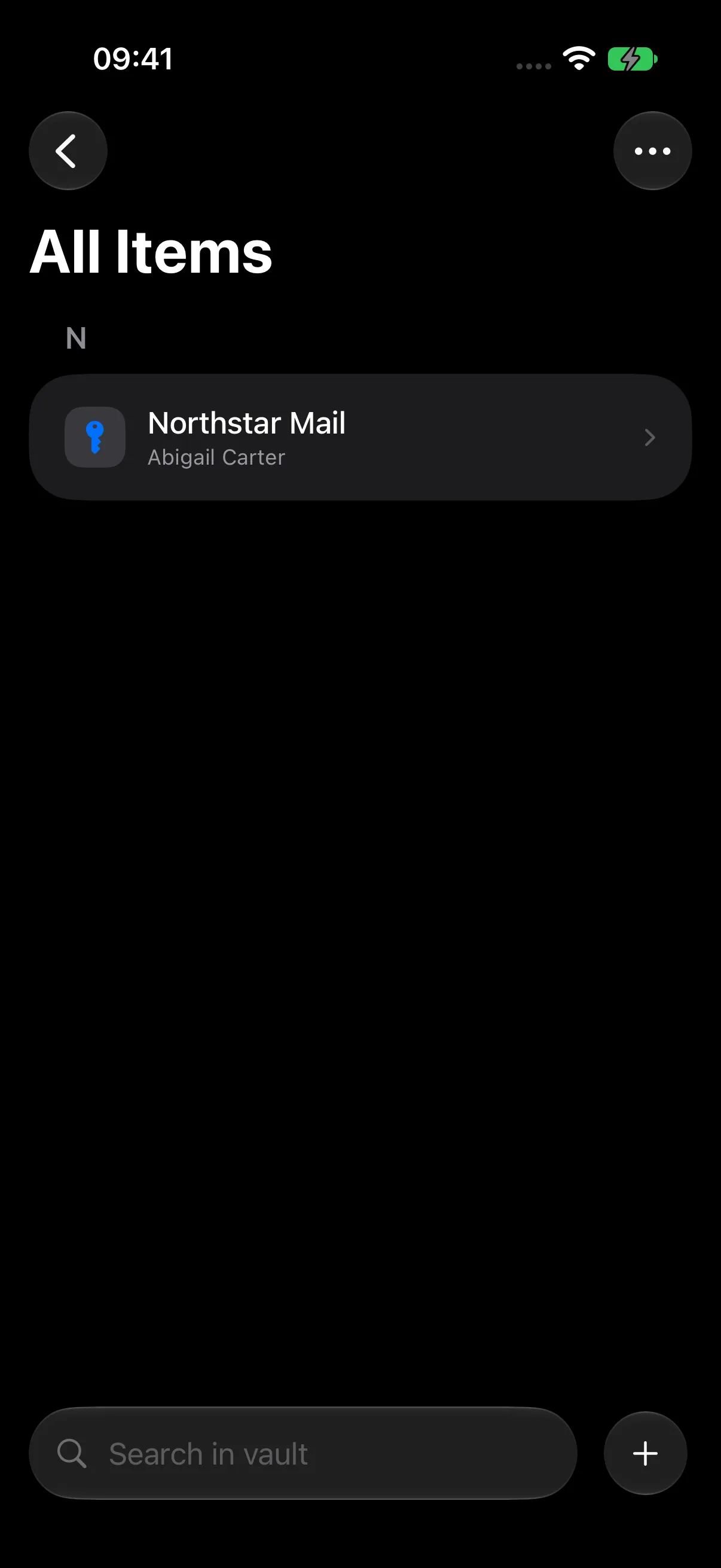
Step 6 — Open and Edit the Login
- Tap Northstar Mail.
- Review Username, Email, URL, and Password in Information.
- Tap Edit whenever you want to update the record, then Save your changes.
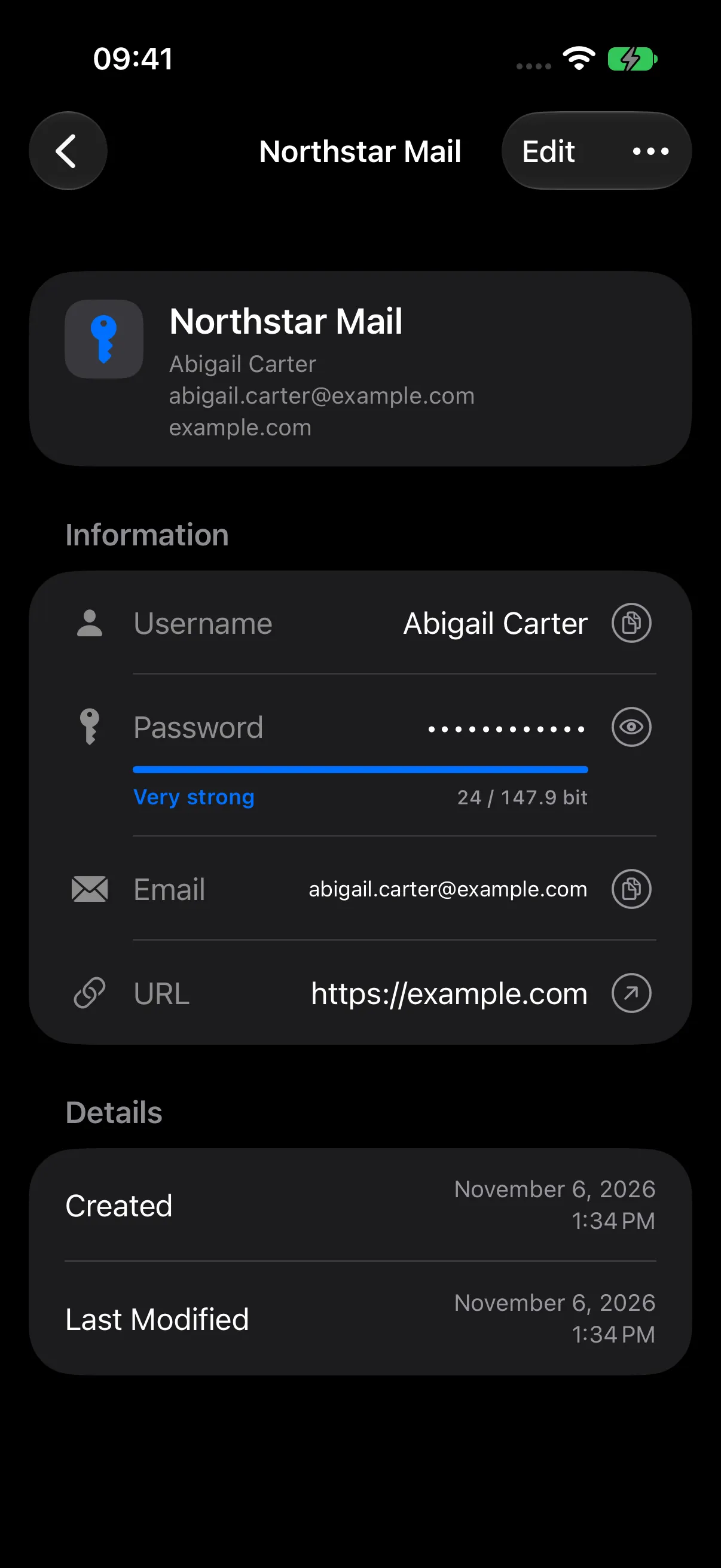
The password is concealed in the detail view. Its visibility control lets you reveal it when needed.
More Entry Fields
| Field or section | Use it for |
|---|---|
| Title | A name you recognize in the list. |
| Username | The account’s sign-in name. |
| Password | The account password. |
| The email address associated with the account. | |
| URL | The account’s website address. |
| Group | The folder for a new entry. Use the list’s Move action to organize an existing entry. |
| Tags | One or more labels for classification. |
| Notes | Additional information about the account. |
| Custom Fields | Extra named values. |
| 2FA | Time-based one-time password setup and codes. |
| Attachments | Photos or files associated with this entry. |
Show Website Icons with Favicons
Bring familiar website logos to your entry list so you can recognize accounts at a glance. Favicon downloads are optional and off by default. Enable them in Settings whenever you want website icons to appear.
Add an Example Website
Use the New Entry flow above to save a fictional Netflix login with these details:
| Field | Example |
|---|---|
| Title | Netflix |
| Username | Abigail Carter |
| abigail.carter@example.com | |
| URL | https://www.netflix.com |
Add an example password and save. With favicon downloads off, the entry uses Talos’s standard key icon.
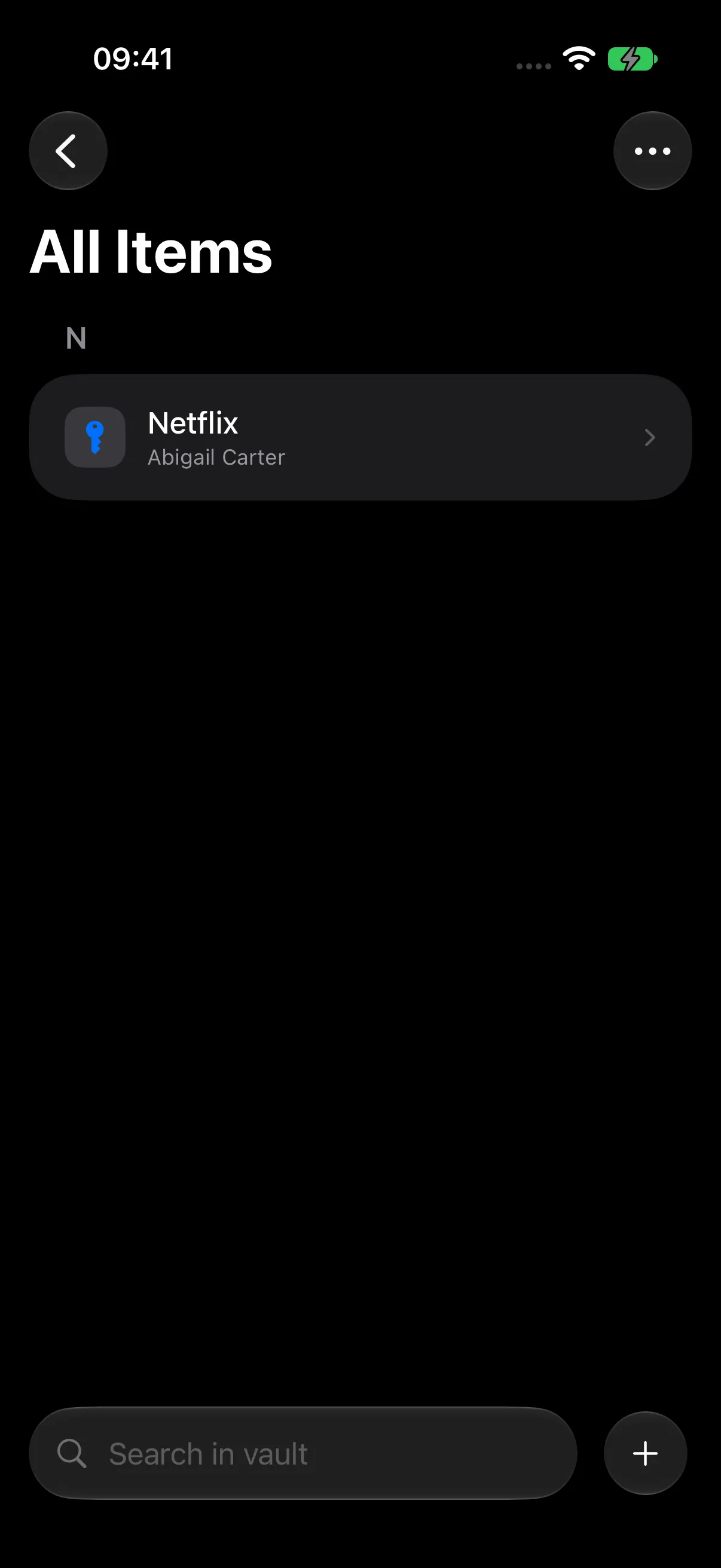
Enable Website Icons
- Return to Vault Home and open Menu (…) > Settings.
- Scroll to Favicon and find Download Favicons.
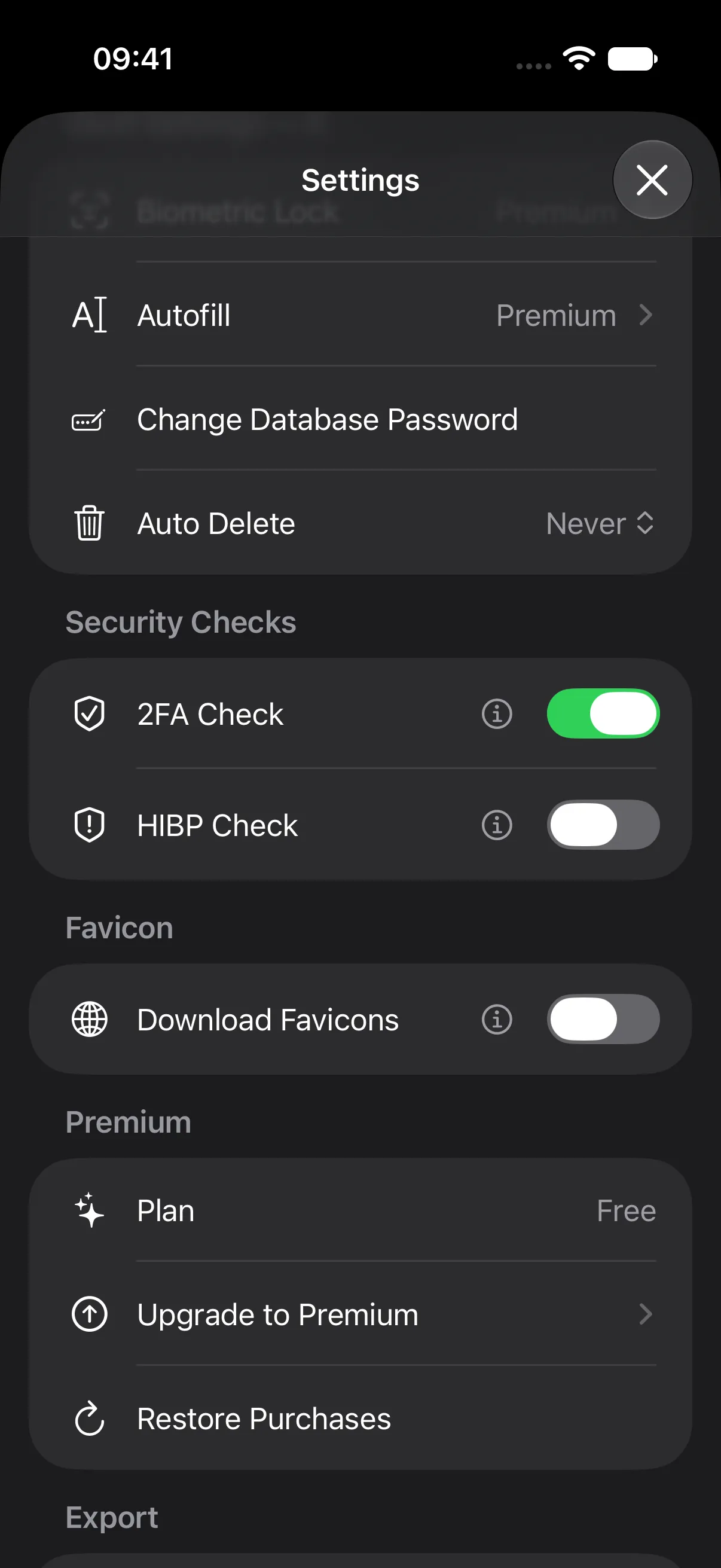
- Turn on Download Favicons. Let any download progress finish, then close the progress sheet and Settings.
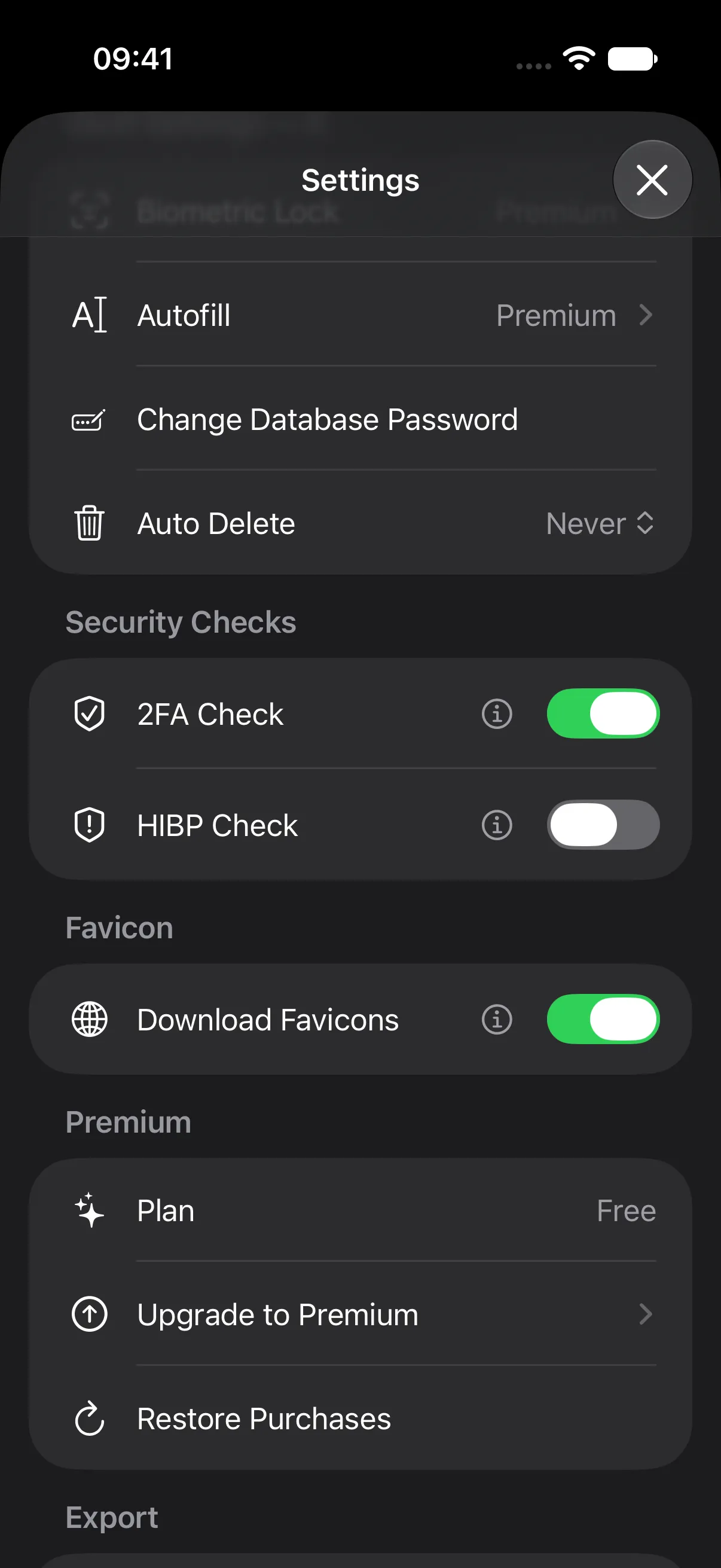
- Open All and find Netflix. Its downloaded website logo now appears beside the entry.
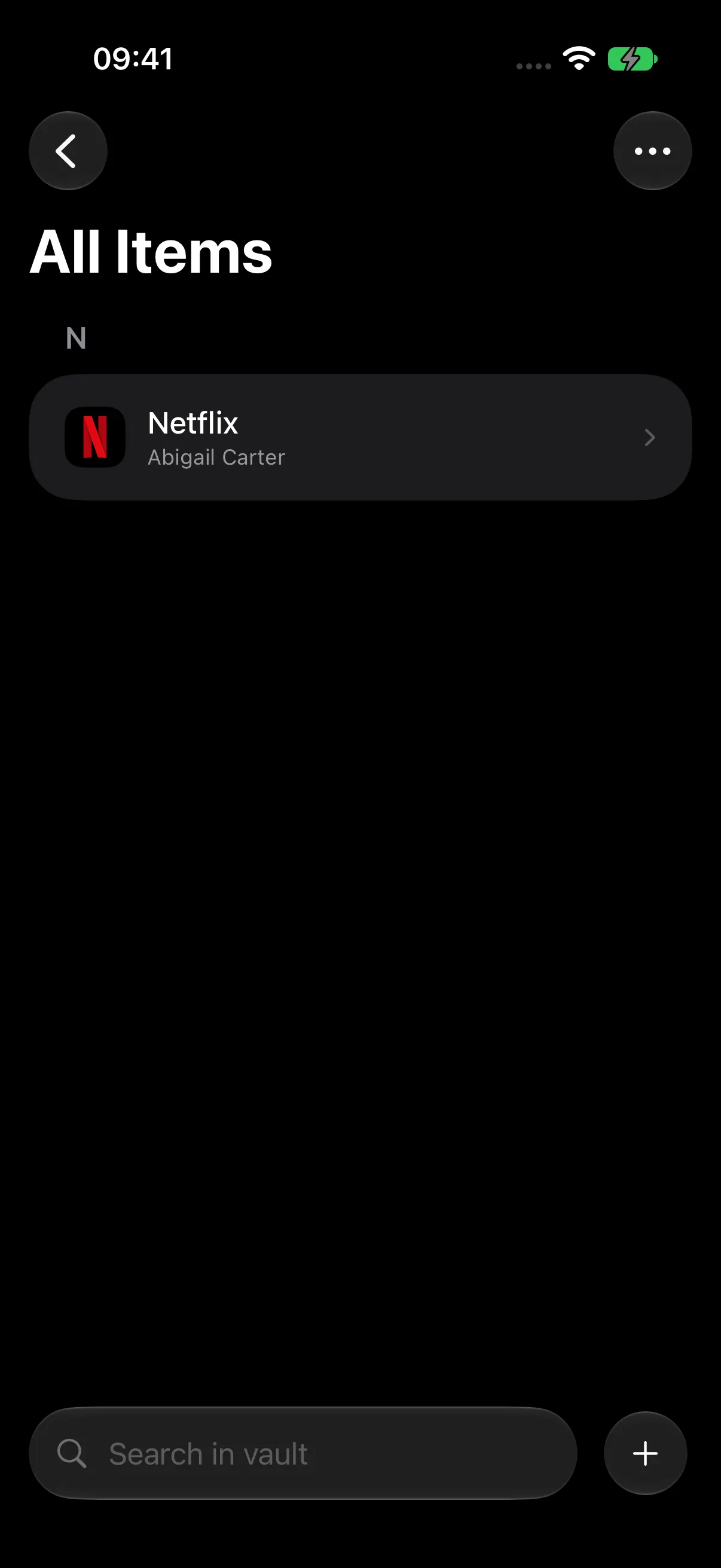
Talos fetches available artwork for the saved website and keeps it in a cache on your device. Icon requests use the website address and available artwork services; your account password is not sent. Adding a URL alone leaves downloads off until you enable the setting.
Turn off Download Favicons to clear the favicon cache and return to the standard icons. Your saved entry details stay in place.
Favicon downloads and breach checks have separate settings. To review passwords and vault recommendations, continue to HIBP and Security Center.
Next Steps
Continue to Organize with Groups & Tags to move Northstar Mail into Work and add colored labels.