Getting started
with Talos.
Your passwords, codes, and private files, together in an encrypted vault. Learn to set up Talos, organize your information, and make its features part of your everyday routine.

CHAPTER 05 13
Search your vault
Find records using text, categories, and tag colors.
In this chapter 6 topics
Find records quickly with live search, category filters, and tag colors. This example finds Northstar Mail in Abigail’s Vault.
Step 1 — Open Search
Unlock your vault and tap Search in vault on Vault Home.
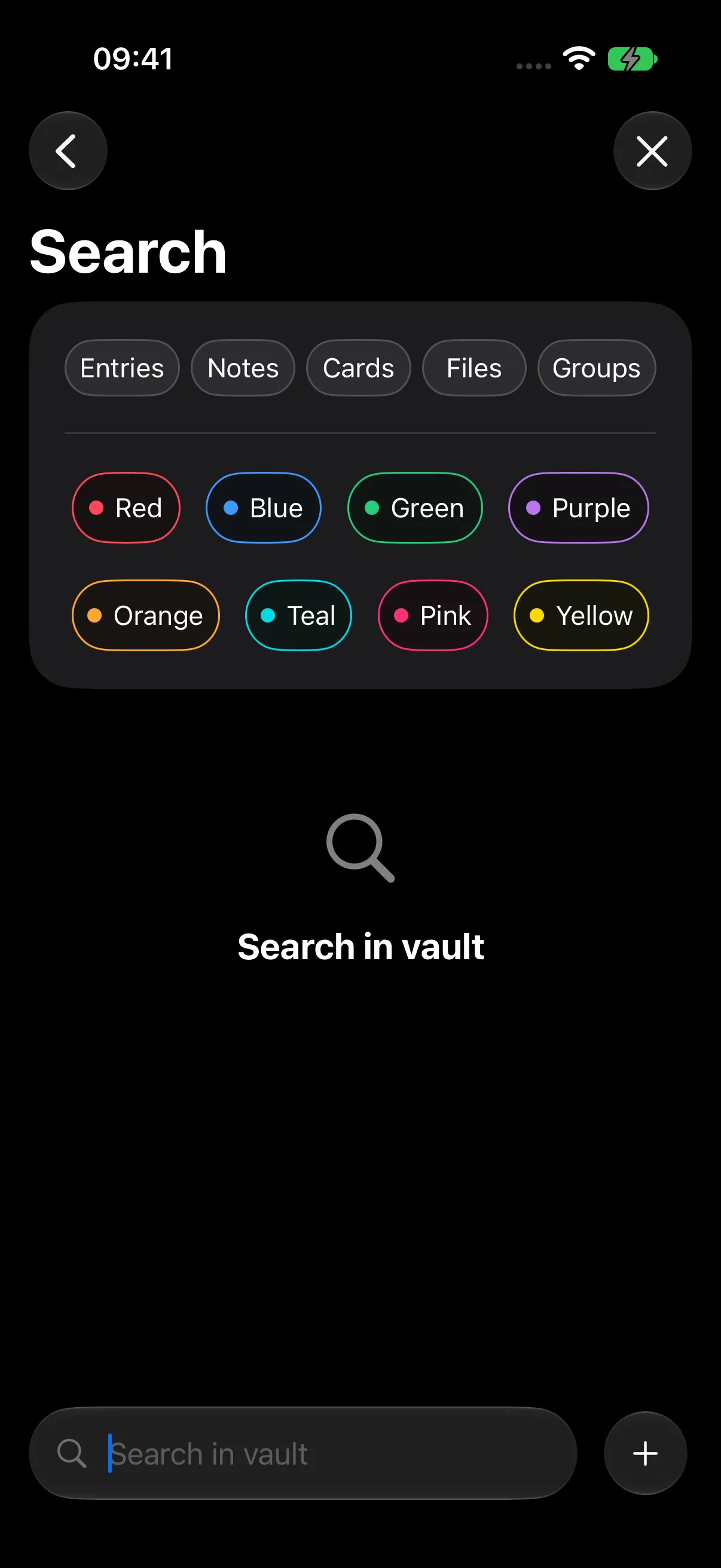
Enter Northstar. Results update as you type; tap Northstar Mail to open it.
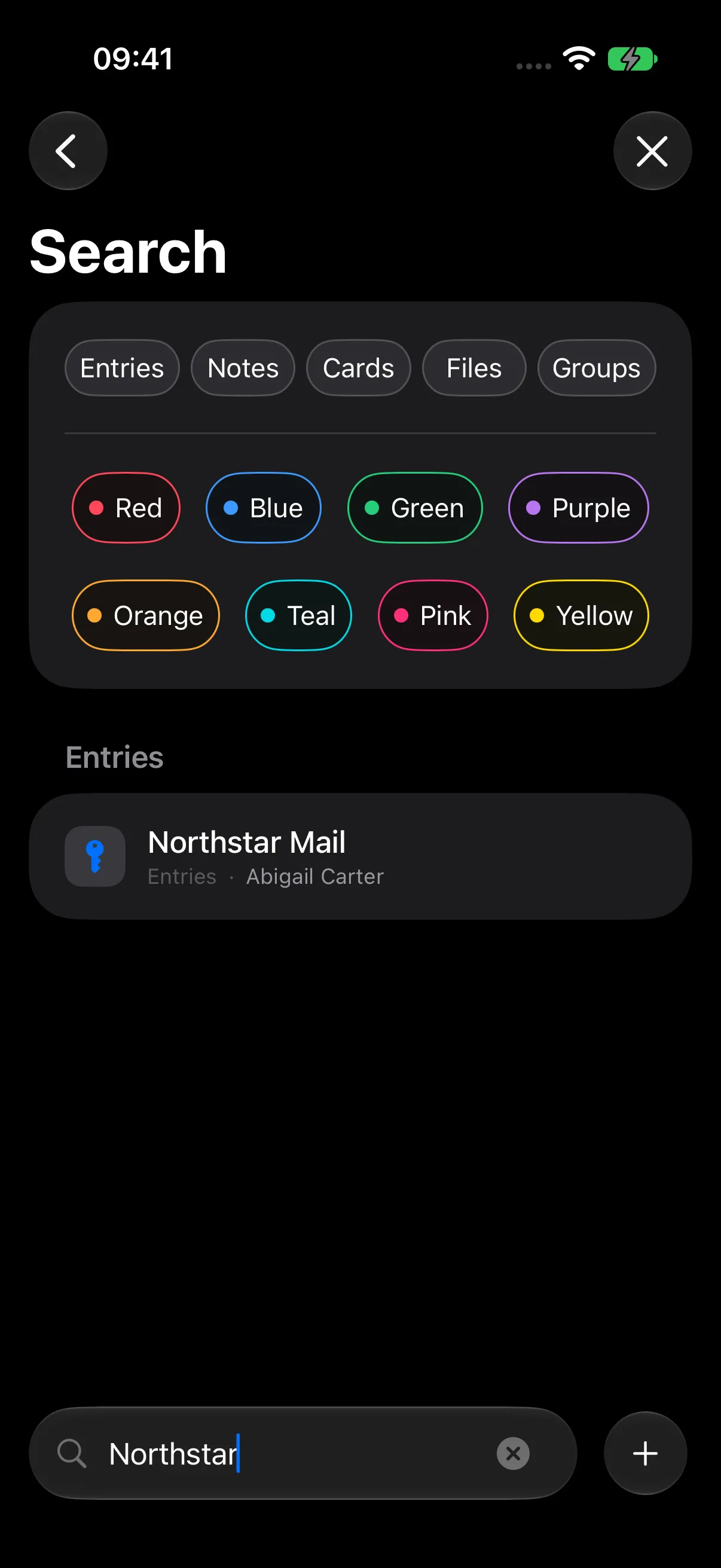
Search ignores letter case and accents. For a query containing several words, each word can match a different searchable field in the same record.
Step 2 — Choose Categories
Choose Entries, Notes, Cards, Files, or Groups. Selecting Entries narrows this example to logins.
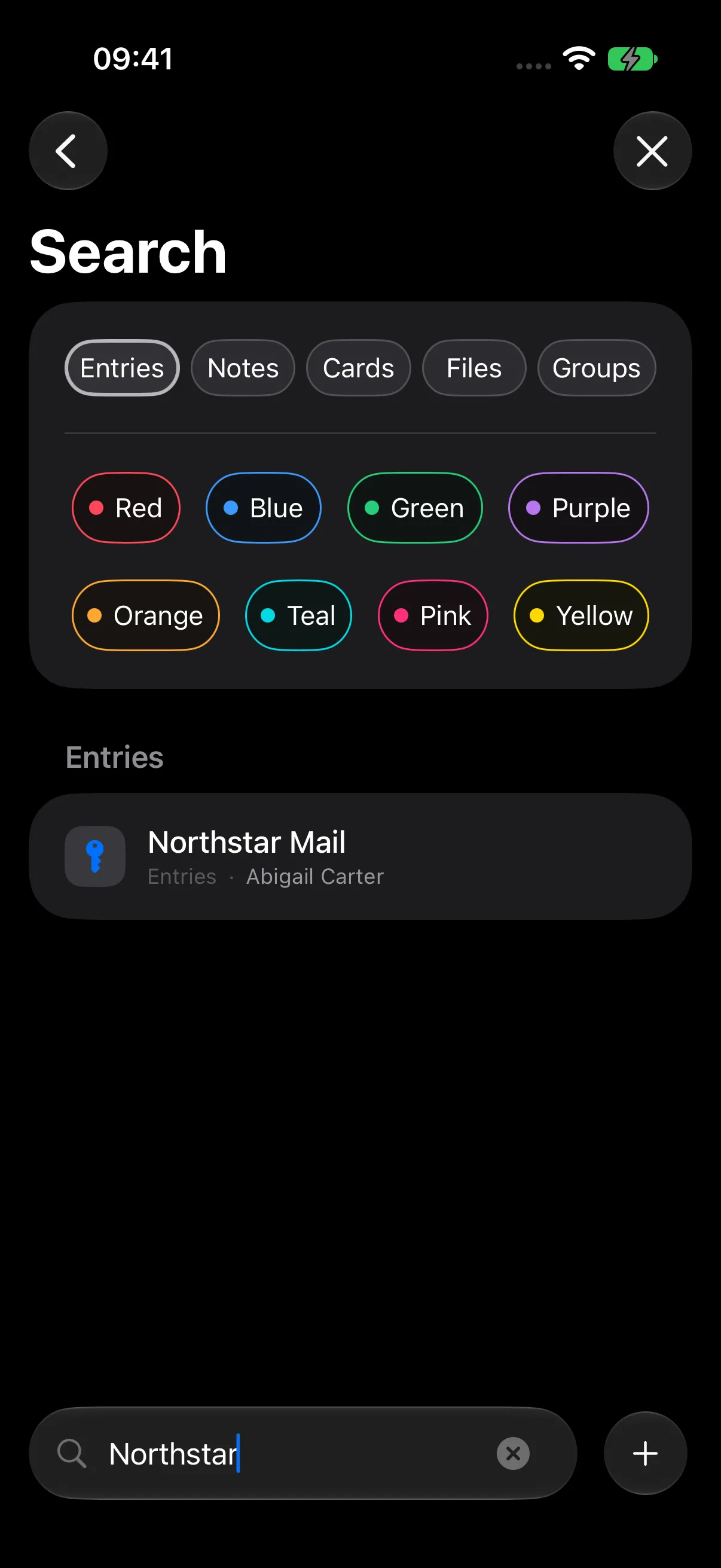
Select several categories to include records from any of them. Leave the row unselected to search across all five. You can also select a category with an empty query to browse its available records.
Step 3 — Filter by Tag Color
The palette offers Red, Blue, Green, Purple, Orange, Teal, Pink, and Yellow.
Select Red with the Northstar query and Entries filter. Northstar Mail matches through its red Important tag. Its blue Work tag also makes it eligible for the Blue filter.

A selected color matches any attached tag with that color. When several colors are selected, a record needs at least one matching tag. Color filters apply to tagged records.
Combine and Clear Filters
Text, categories, and colors work together. Northstar + Entries + Red finds matching logins with a red tag.
- Tap a selected category or color again to deselect it.
- Use the search field’s × to clear the query.
- Clear all selected chips to return to an unrestricted search.
- Tap Close Search at the top right to return to your vault.
Filter selections can remain when reopening Search in the same vault session. Review the selected chips when starting a new search.
What Can I Search For?
| Record | Searchable information |
|---|---|
| Entries | Title, username, email, website, tags, unprotected notes and custom fields; authorized 2FA service and account labels. |
| Notes | Title and unprotected content. |
| Cards | Title, cardholder, bank or brand, card type, and last four digits. |
| Files | Title, original filename, type, issuer, tags, and eligible OCR content. |
| Groups | Name, notes, and group path. |
Search respects category authorization and document privacy settings. To search a protected category, authorize it first. For document text, enable Include OCR content in search and choose the appropriate visibility settings; see Files, Photos & OCR.
Dedicated secret fields, including passwords, TOTP secrets, full card numbers, CVCs, and PINs, stay outside text matching. Use the record’s detail screen to access these values.
Next Steps
Continue to Import an Existing KDBX Database, or return to Organize with Groups & Tags.