Getting started
with Talos.
Your passwords, codes, and private files, together in an encrypted vault. Learn to set up Talos, organize your information, and make its features part of your everyday routine.

CHAPTER 10 13
Category protection
Add biometric authorization to selected areas of an unlocked vault.
In this chapter 8 topics
Add Face ID or Touch ID authorization to selected areas inside your encrypted vault. Category protection gives you control over access to documents, notes, photos, cards, and other sections after unlocking Talos.
This example protects Files in Abigail’s Vault.
Step 1 — Open Manage Sections
- Unlock your vault.
- On Vault Home, choose Menu (…) > Manage Sections.
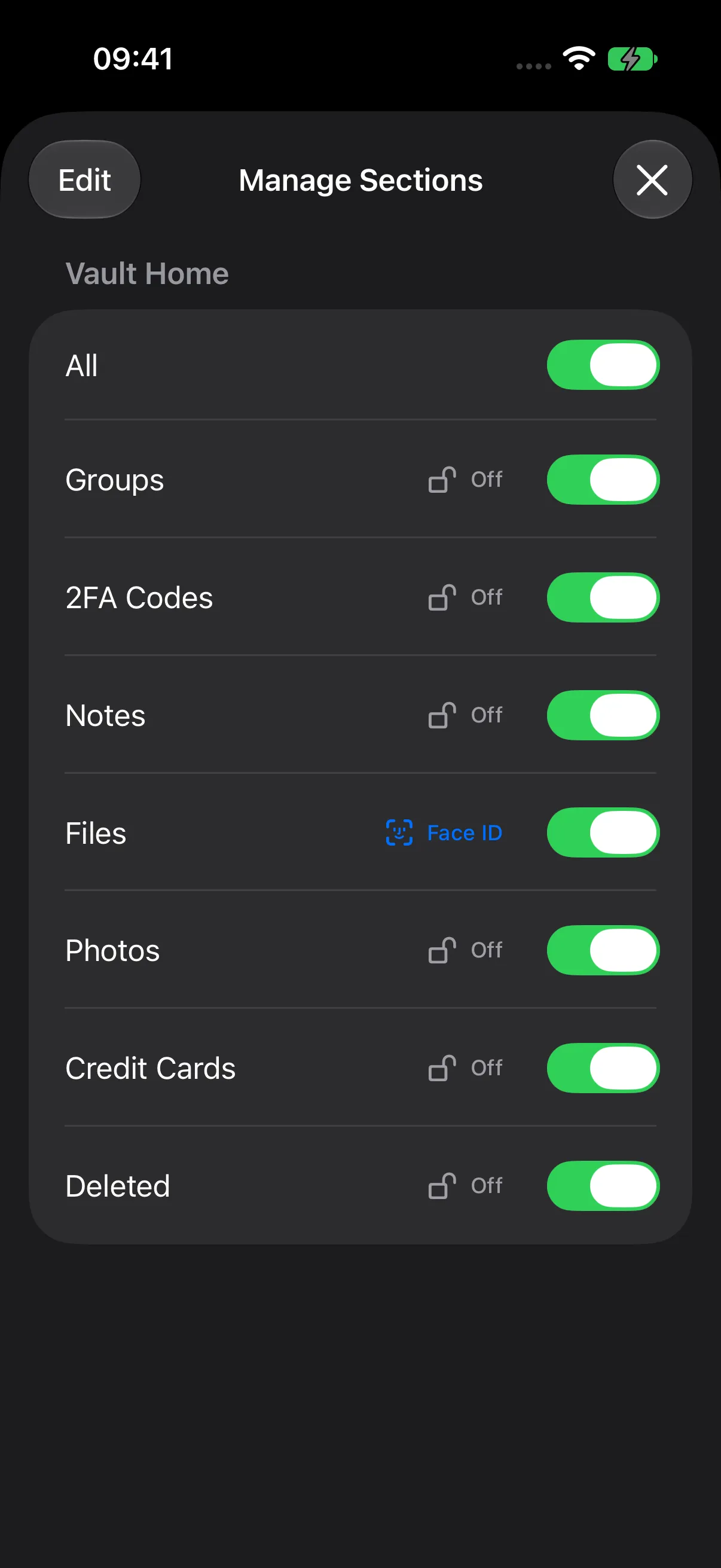
- Find the security control beside the section you want to protect.
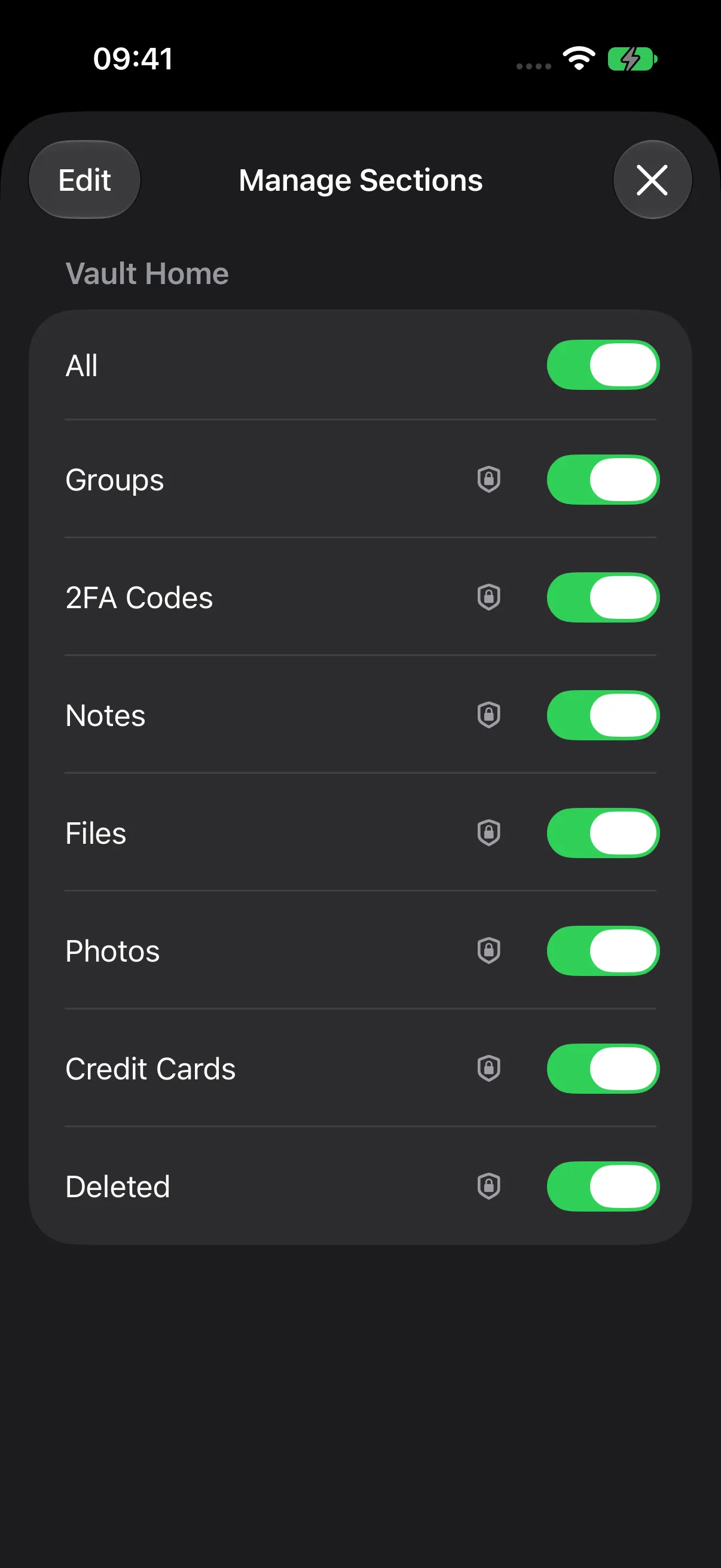
Category protection is a Premium feature. With eligible access, the control displays its status, such as Off, Face ID, or Touch ID, depending on your device.
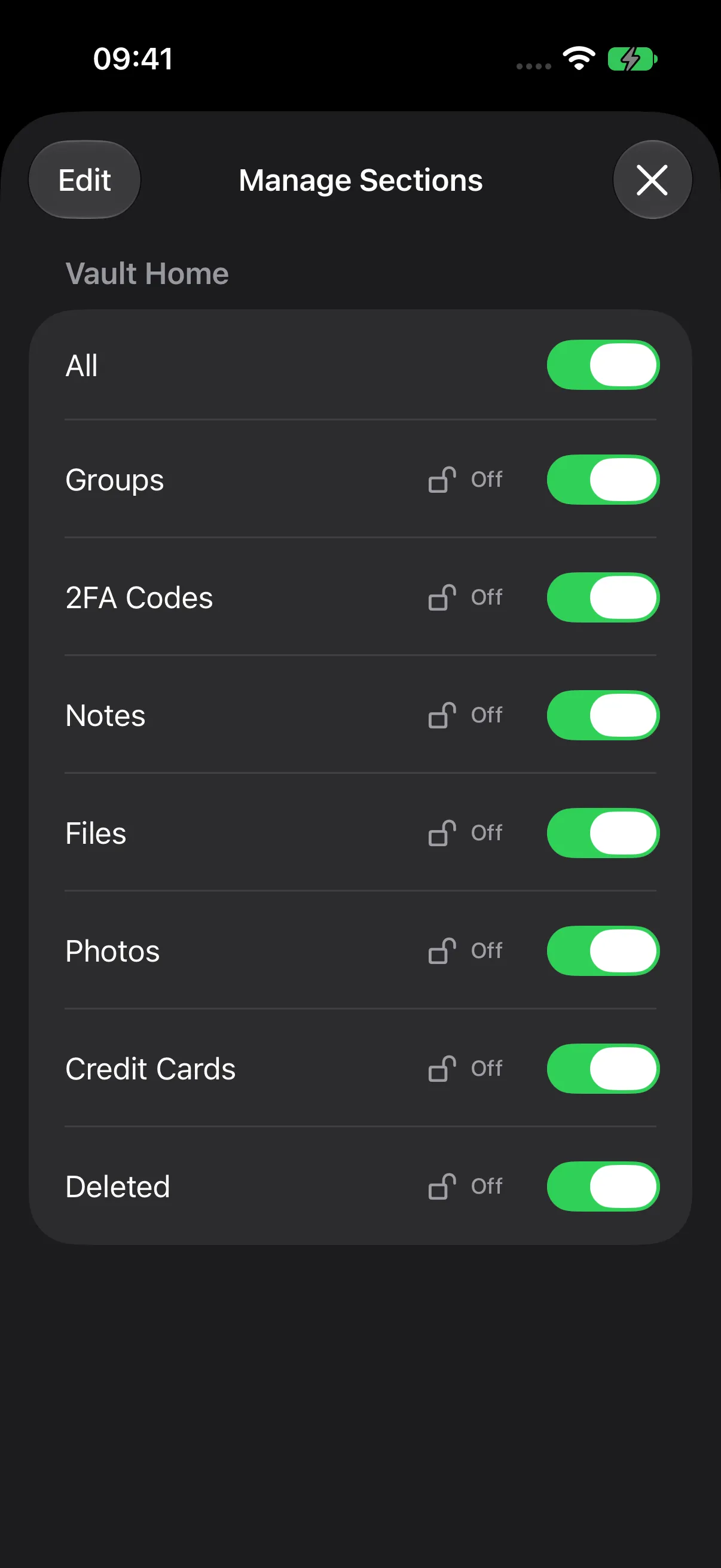
The separate visibility switch controls whether a section appears on Vault Home. Keep at least two sections visible; use Edit to reorder them.
Protection is available for Groups, 2FA Codes, Notes, Files, Photos, Credit Cards, and Deleted.
Step 2 — Prepare Face ID or Touch ID
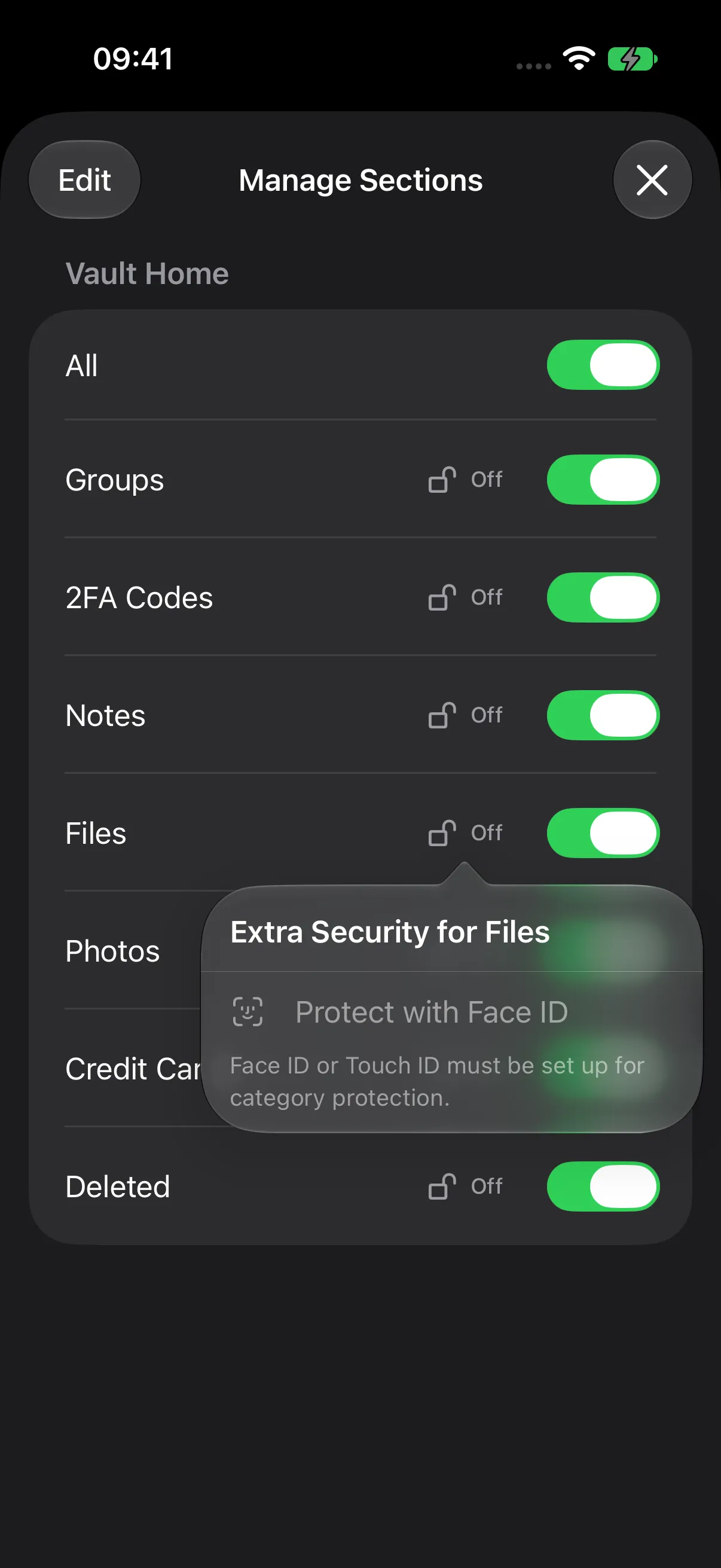
Set up biometrics in your device’s Settings. Talos uses the biometric method available on your iPhone or iPad.
If Manage Sections asks you to set up Face ID or Touch ID, complete device setup and reopen the screen.
Step 3 — Protect Files
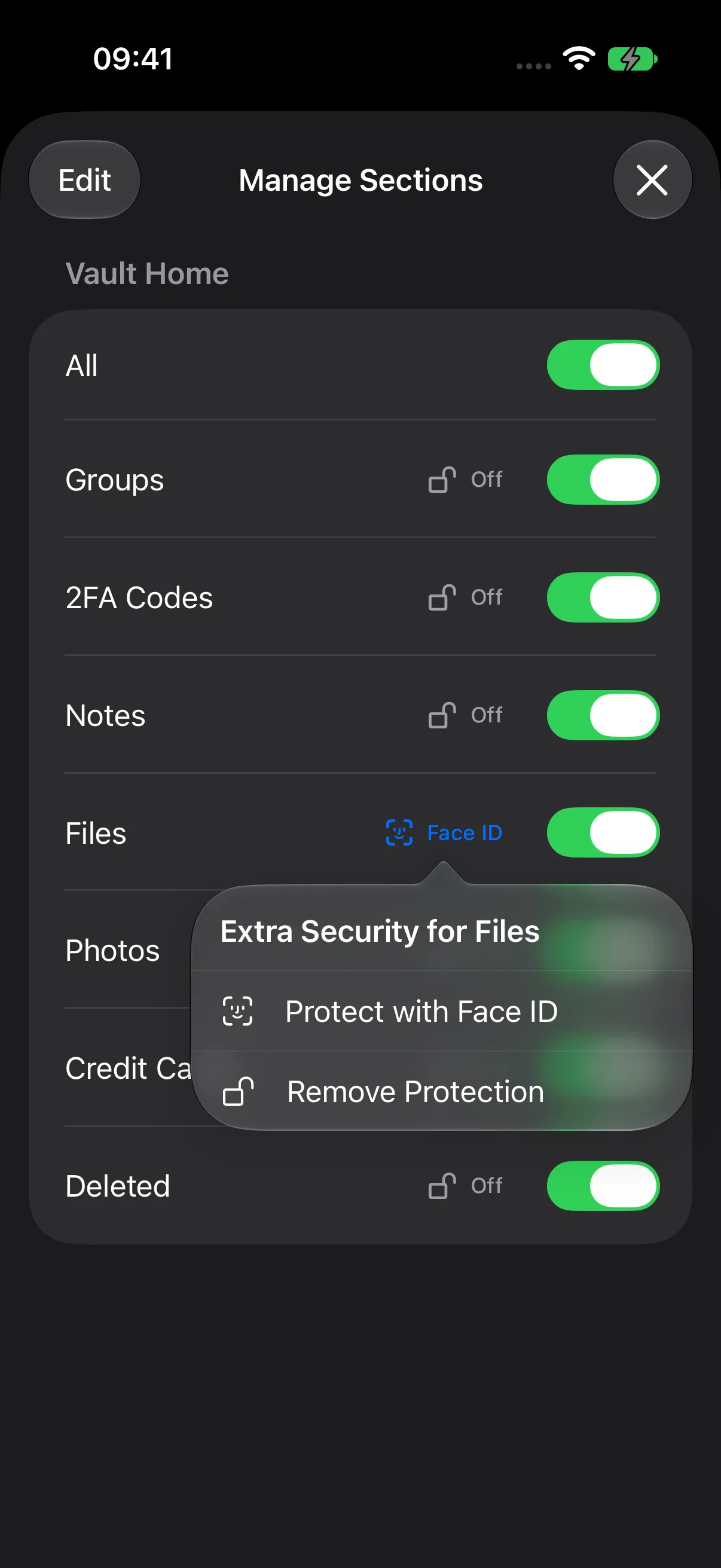
- Tap Off beside Files.
- Choose Protect with Face ID, or the corresponding Touch ID action.
- Confirm that the security control now displays the biometric method.
- Close Manage Sections with Done (×).
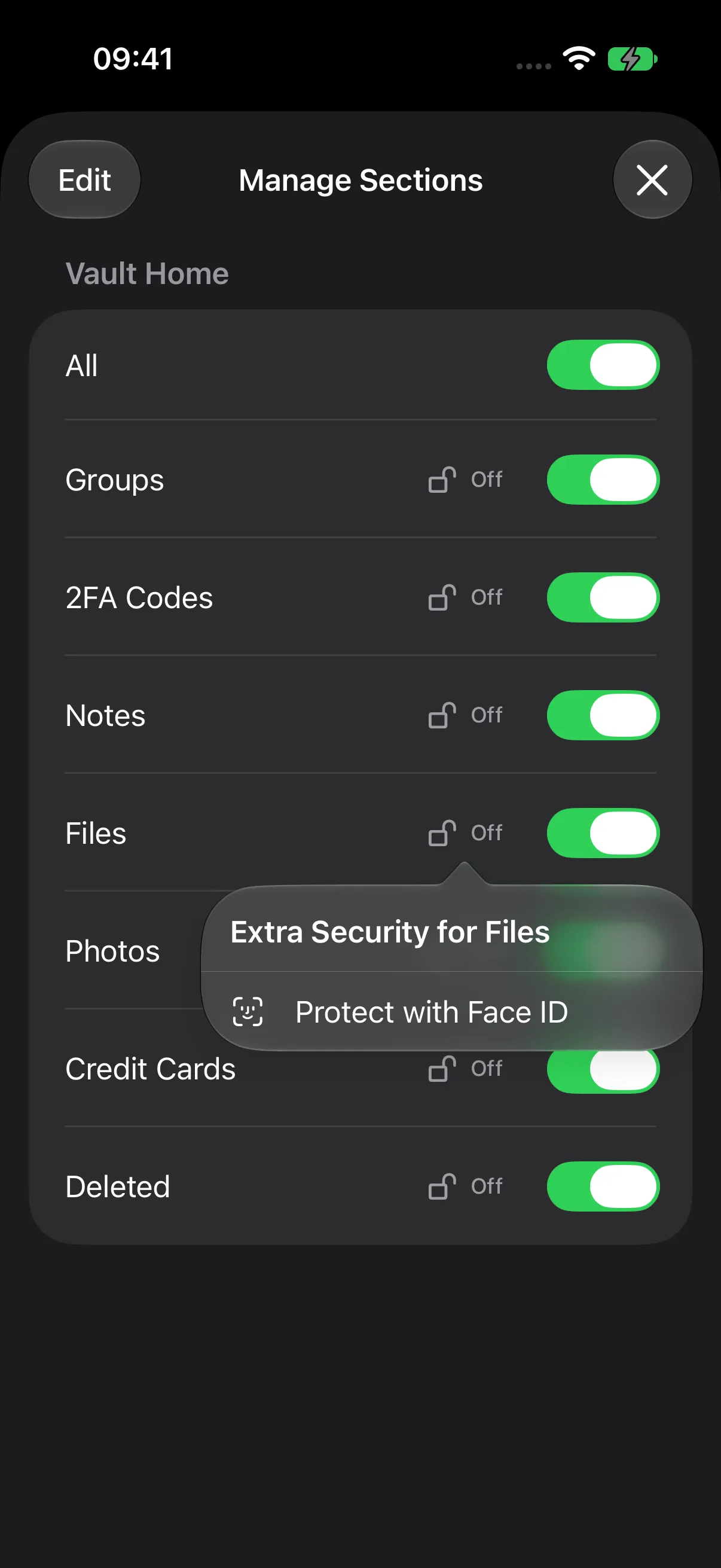
The Face ID label indicates that protection is enabled for Files.
Step 4 — Open the Protected Category
On Vault Home, Files displays a lock in place of its record count.
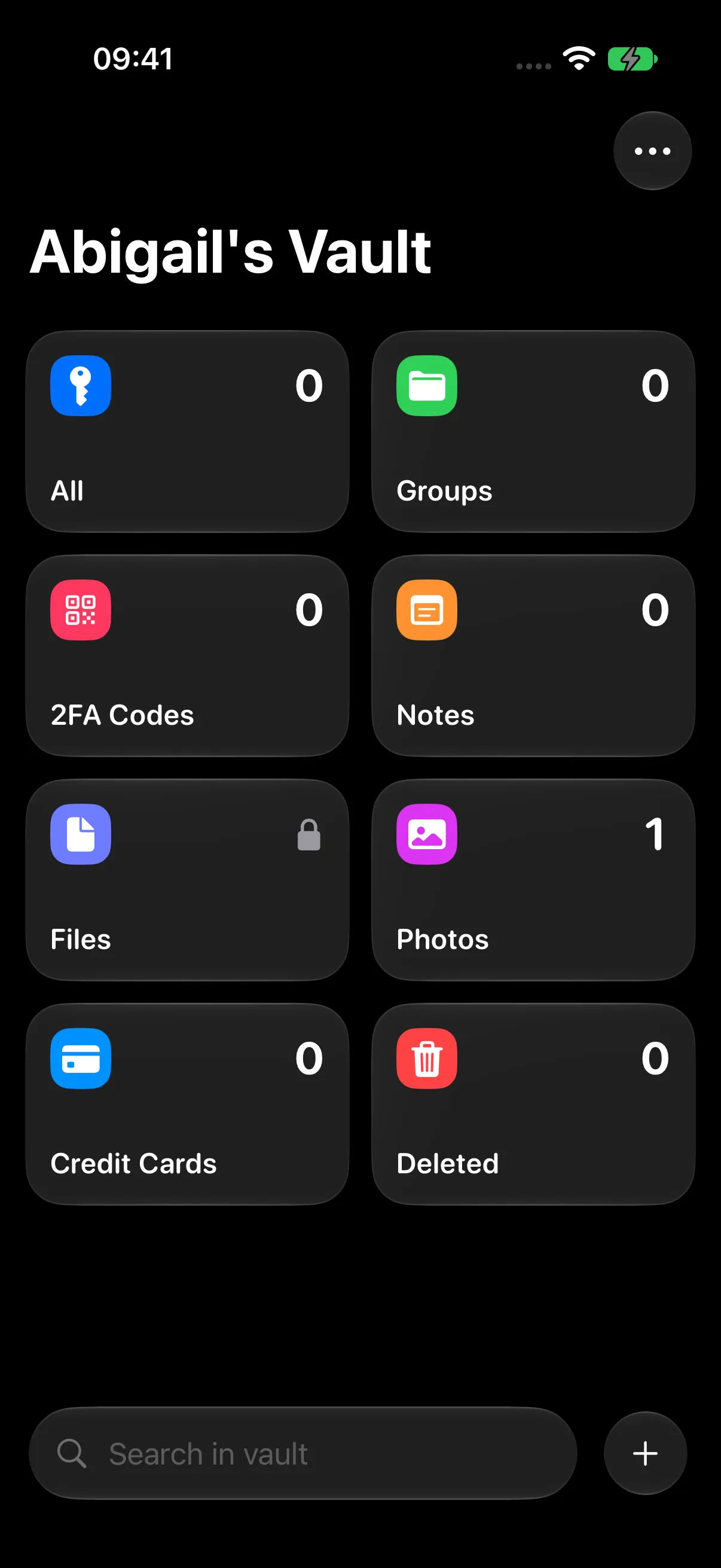
Tap Files and complete Face ID or Touch ID authorization, depending on your device. Your files open after successful verification.
Access During Your Vault Session
After authorization, the category’s count is visible again. You can continue using Files during the current vault session.
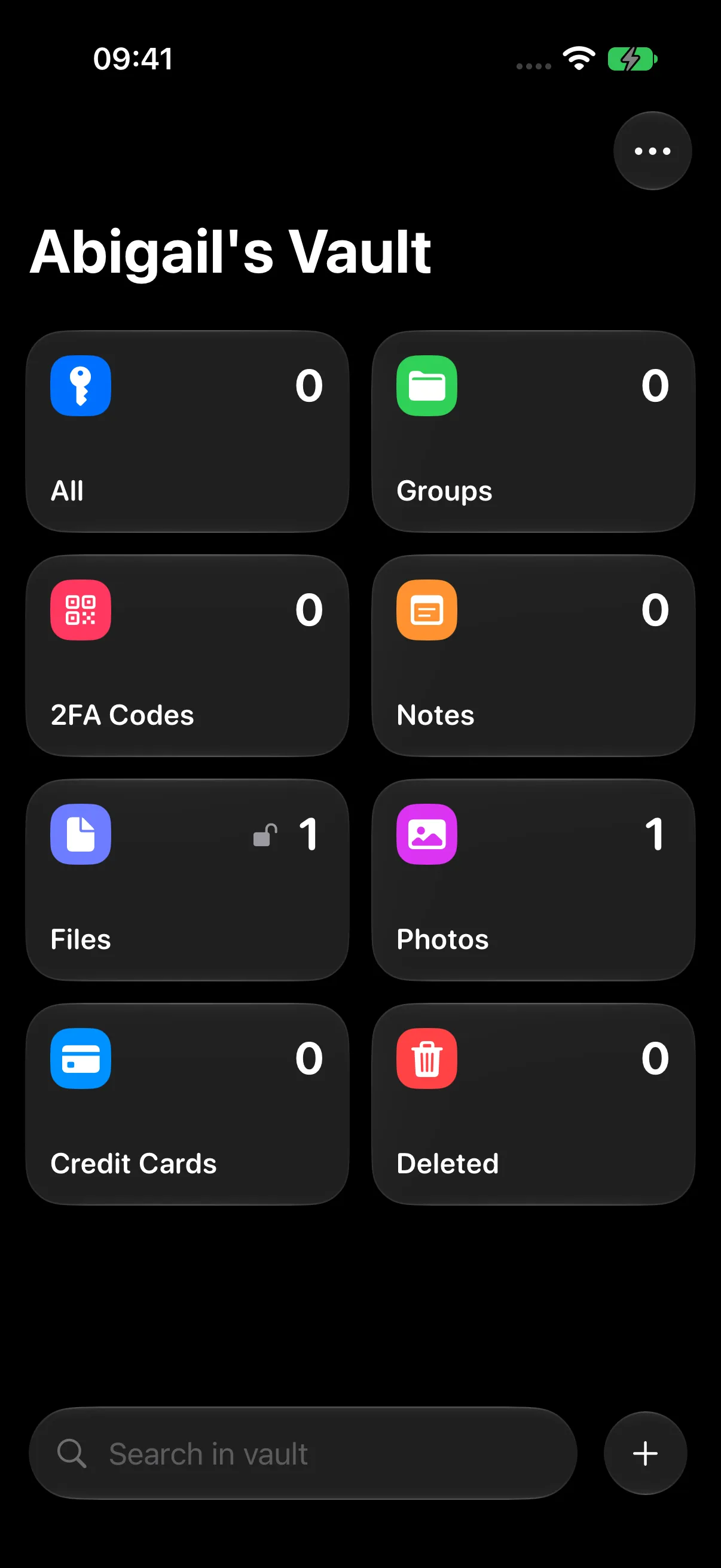
Locking the vault clears category authorization. When you open a new vault session, authorize the protected category again. Configure Auto-Lock to suit how you use your device.
Change or Remove Protection
- Open Menu (…) > Manage Sections.
- Tap the protected category’s security control.
- Choose the setting you want, including Remove Protection.
- Complete fresh biometric authorization to confirm a change to existing protection.
Configure category protection on each device where you use Talos. The settings are device-local and associated with the selected vault.
How the Categories Work
| Category | Protection controls |
|---|---|
| Notes, Credit Cards, Files | Access to records, their detail screens, and their availability in search. |
| Groups | Group navigation and group-name search. Logins remain organized within their groups. |
| 2FA Codes | Reading and configuring authentication codes; a login’s ordinary account details remain a separate capability. |
| Photos | Access to the vault’s photo gallery. |
| Deleted | Access to deleted content within the trash boundary. |
Authorize the appropriate category before using its records in Search. Documents can also have their own preview, sharing, export, and OCR policies; see Files, Photos & OCR.
With an expired Premium entitlement, Talos offers access renewal or Unlock and Remove Protection, using the existing biometric authorization.
Next Steps
Continue to AutoFill & Passkeys, or return to Files, Photos & OCR.